Small Business Cybersecurity Checklist for Shared Accounts and Devices
If several people use the same logins, laptops or tablets, the risk is usually in the everyday habits. This checklist shows how to reduce mistakes, tighten access and make shared systems easier to control.
By Daniel Foster · Published 9 October 2026 · Updated 9 October 2026 · 8 min read
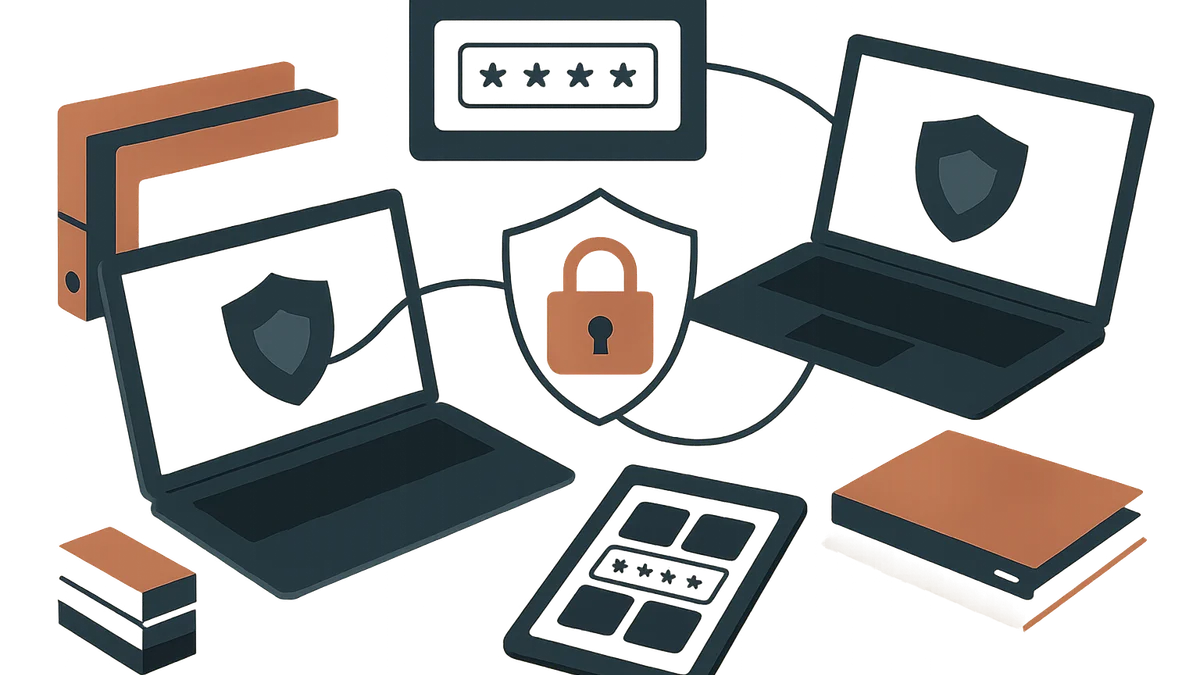
If several people use the same account, laptop or tablet, the weak point is often not a dramatic hack. It is the small, ordinary failure: someone leaves themselves signed in, a password is passed around in chat, a device is used without updates, or a former member of staff still has access to a shared inbox.
This checklist is for those day-to-day risks. It gives you a practical way to reduce accidental access, make responsibility clear and respond faster if something goes wrong. The aim is not perfect security. The aim is to make shared systems easier to manage without slowing the business down.
Why shared accounts and shared devices create extra risk
Shared accounts and devices create three common problems:
- Weaker accountability. If everyone uses the same login, it is harder to tell who changed a file, approved a payment or deleted a message.
- Harder offboarding. When someone leaves, you cannot simply remove one person’s access if the whole team uses one password.
- More chance of accidental access or data loss. A colleague may open the wrong file, save a document locally, or leave a tablet unlocked for the next person.
The result is usually confusion first and a security incident second. Good controls reduce both.
1. Start with the basics: make an inventory
Before you change anything, list every shared account and every shared device. Then write down who is allowed to use each one and for what purpose.
What to record
- Shared email inboxes
- Banking and finance systems
- Payroll, HR and scheduling tools
- Cloud storage and shared folders
- Customer relationship management systems
- Shared laptops, desktops and tablets
- Any phones used for work accounts or two-factor codes
Simple rule
If you cannot say who uses it, why they use it and who owns it, it is already a risk.
2. Replace shared logins where you can
The safest account is one person, one login. That gives you a proper audit trail and makes it far easier to remove access when roles change.
Start with the accounts that matter most: finance, email, cloud storage and customer records. Give each person their own user account and permissions. Reserve shared accounts only for cases where there is a clear operational reason, such as a general enquiries mailbox or a team calendar.
A practical way to do this
- Create individual user accounts for everyone who needs access.
- Move routine tasks away from shared credentials.
- Keep a small number of shared accounts for genuine business needs.
- Document who owns each shared account and how access is approved.
For software selection and account planning, it can help to think about what the business actually needs the system to do rather than choosing the most feature-heavy option. See also Choosing business software for a growing team.
3. Use role-based access
Role-based access means people only see and change what they need for their job. In practice, that might mean a bookkeeper can prepare payments but not approve them, or a sales team can view customer contact details but not export full records.
Where to tighten access first
- Finance: separate payment creation, approval and reconciliation.
- Email: limit who can access shared inboxes and archived mail.
- Cloud storage: use folder permissions rather than open access to the whole drive.
- Customer records: restrict exports, deletions and bulk edits.
Ask a simple question for each system: if this person made a mistake, what is the worst they could change by accident? Then remove anything they do not need.
4. Turn on multifactor authentication for every important service
Multifactor authentication, often shortened to MFA, adds a second check after the password. That second check might be a code from an authenticator app or a security key that you plug into the device.
Use it on email, cloud storage, finance tools, payroll, customer systems and any remote access service. If an attacker gets a password, MFA can still stop them from getting in.
How to explain it to staff
- Authenticator app: a phone app that generates a changing code or prompt when you sign in.
- Security key: a small physical device that proves it is really you when you sign in.
Make sure staff know which method they should use, where to find the backup codes, and what to do if a phone is lost or replaced.
5. Set a password rule that works in practice
Shared environments often fall into bad habits around passwords. A workable rule is straightforward:
- Use unique passwords for every account.
- Store them in a business password manager.
- Do not share passwords in chat, email or on sticky notes.
A password manager reduces the temptation to reuse one password everywhere. It also makes handover easier because access can be managed centrally instead of being passed informally between colleagues.
What not to do
- Do not send passwords through personal messaging apps.
- Do not save sensitive logins in browser autofill on a shared device.
- Do not use one password for a whole team just because it is easier to remember.
6. Lock down shared devices
Shared laptops and tablets should be treated as business tools, not general-use family devices. Put a few basic controls in place and keep them consistent.
Minimum settings to apply
- Automatic screen lock after a short period of inactivity
- Device PIN or password required at sign-in
- Full-disk encryption where the device supports it
- Separate user profiles where possible
Separate user profiles are useful because they keep files, browser history and saved settings apart. If the device cannot support separate profiles, limit what can be stored locally and use web-based services with proper sign-in controls.
7. Control software updates and antivirus
Out-of-date software is one of the easiest ways for a device to become vulnerable. Make one person responsible for checking updates and antivirus status, even if the work is shared across the team.
Set a simple routine
- Decide who checks updates.
- Decide how often checks happen.
- Decide what happens if a device is out of date.
If a shared laptop cannot be updated because someone is using an old app or the device is too full, that is not a minor admin issue. It is a security problem that needs fixing before the device is relied on again.
8. Use secure handover rules
Shared devices work best when handover is routine and boring. Write down the basics and keep them visible.
Handover checklist
- Sign out of accounts before passing the device on
- Plug it in to charge at the end of use
- Return it to a known storage place
- Report faults or missing devices immediately
If a laptop or phone goes missing, treat it as a security incident, not a normal loss. The quicker you report it, the faster you can reset access and reduce exposure.
9. Set clear rules for what staff must never do
People are more likely to follow cybersecurity rules if they are short and specific. Focus on the actions that create the most risk on shared systems.
Never do these on shared systems
- Save passwords in browsers without approval
- Use personal email for work files
- Install unapproved apps or browser extensions
- Copy customer data to personal USB drives or private cloud accounts
- Leave a shared device unlocked, even for a short time
These rules work best when they are backed up by access controls, not just trust.
10. Protect data on shared files and cloud drives
Shared storage can become messy quickly. If every team member can delete, overwrite or move everything, mistakes are hard to reverse.
Good practice for shared folders
- Set folder permissions carefully.
- Keep deletion rights limited to the people who need them.
- Use version history so you can recover earlier copies.
- Keep backup copies in a separate system.
When a file is deleted or overwritten, version history and backups can save hours of work. They also reduce pressure on staff, because a mistake is less likely to become a crisis.
11. Cover remote and hybrid working too
Shared devices do not become less risky outside the office. In some cases, the risks are higher because connections and surroundings are less controlled.
Extra checks for remote use
- Avoid public Wi‑Fi for sensitive work if you can use a trusted connection instead.
- If staff use personal hotspots, make sure they understand the device and account rules still apply.
- Confirm what changes when a shared device leaves the office, including storage, transport and sign-in requirements.
Remote work does not need a separate policy for every situation. It does need the same rules, applied more carefully.
12. Create a small incident response plan
You do not need a large manual to deal with a suspected compromise. You do need a clear sequence of actions.
Mini-plan for shared accounts and devices
- Tell staff exactly how to report a suspected issue.
- Decide who resets passwords and revokes access.
- Decide who isolates a device from the network.
- Check whether any shared folders, inboxes or finance tools were affected.
- Record what happened and what changed afterwards.
Keep this plan short enough that someone can use it under pressure. If the process is too long, people will improvise.
13. Make the checklist part of a routine
A checklist only helps if someone owns it. Assign one person to keep it current, set a review date and turn the items into a recurring task rather than a one-off clean-up.
A practical review rhythm
- Monthly: check shared accounts, device status and missed updates.
- When someone joins or leaves: review permissions straight away.
- After any incident: update the checklist if the problem exposed a gap.
The Information Commissioner’s Office provides advice and guidance for small and medium organisations, including small charities, groups and clubs: https://ico.org.uk/for-organisations/advice-for-small-organisations/.
Key takeaways
- Shared logins and devices make accountability weaker and offboarding harder.
- Give people their own accounts wherever possible and use role-based access.
- Turn on multifactor authentication for important services.
- Use a business password manager and stop password sharing in chat or email.
- Lock down shared devices with screen locks, encryption and user profiles.
- Keep a simple incident plan so you can act quickly if something looks wrong.
Action checklist
- List every shared account and device.
- Replace shared logins with individual accounts where you can.
- Restrict access by role, especially for finance and customer data.
- Enable multifactor authentication and a business password manager.
- Set device rules for locking, updates, storage and handover.
- Assign one owner and one review date.
Related articles

Choosing business software for a growing team
A practical guide to selecting business software that can support a growing team without creating unnecessary complexity, cost or risk.
2 October 2026 · 7 min read